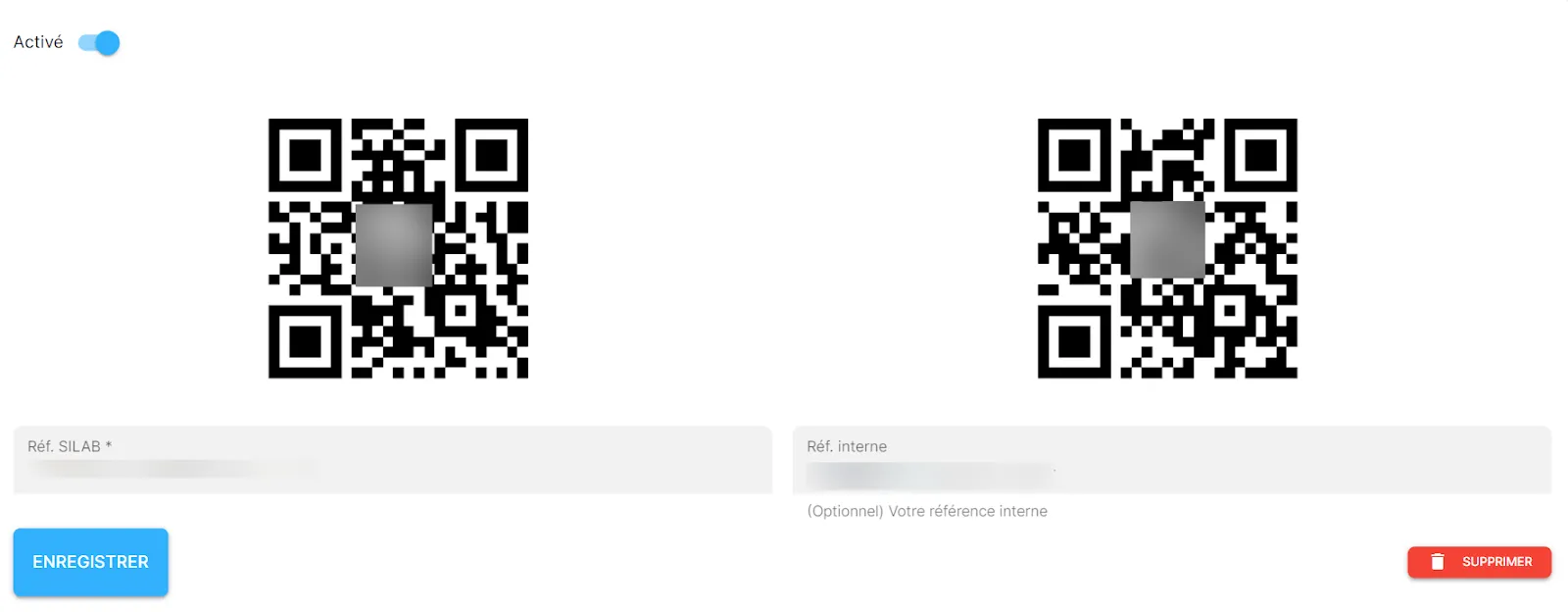
How do I identify equipment with the mobile app?
Before recording data, you need to identify the equipment (the checkpoint) it belongs to. There are 3 methods.
Method 1: scan the equipment’s QR code
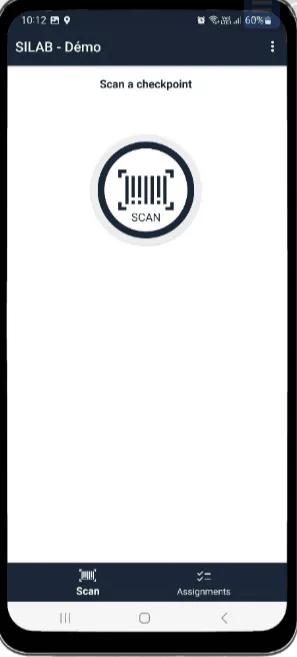
Section titled “Method 1: scan the equipment’s QR code”- Open the SILAB app.
- In the main menu, tap Scan: the camera turns on.
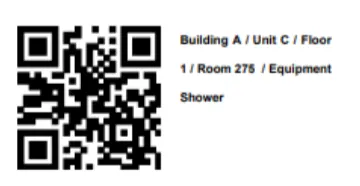
- Point it at the equipment’s QR code.
As soon as the QR code is detected, the equipment page opens.
Method 2: pick the equipment from the list
Section titled “Method 2: pick the equipment from the list”-
In the main menu, tap Control at the bottom right.
-
Narrow down the list with the filters:
- Controls: the type of data being monitored (temperature, for example). The validity date of the data then appears under each piece of equipment (time remaining).
- Structures: how your building is organised (building, area, department, floor…).
- Labels: the labels attached to the checkpoints.
-
Select the equipment: its page opens and you can record your data.
Method 3: scan data that was already recorded (a filter, for example)
Section titled “Method 3: scan data that was already recorded (a filter, for example)”A QR code or barcode already scanned and recorded on a piece of equipment — such as a legionella filter — lets you find the equipment it is installed on.
-
In the app, open Data, then tap Control.
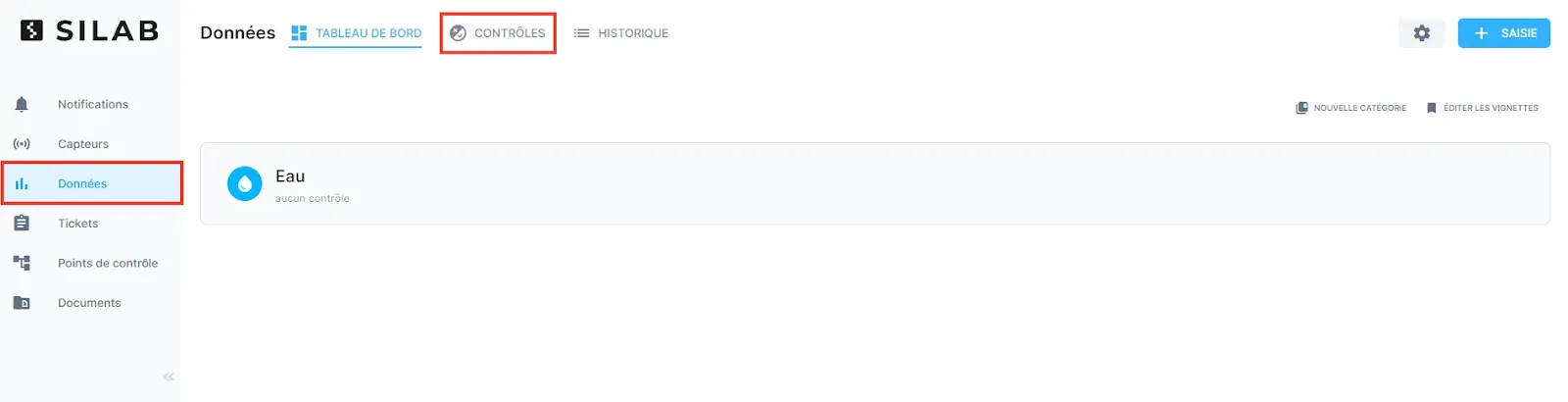
-
Choose the Filter data category.

-
To look for a filter, open Filters and search and enter the building, area, floor and room, then select the result.

-
In front of an installed filter, use the scan an installed filter feature: you go straight to the equipment and the filter’s details.