How do I print the QR codes of my checkpoints?
You can print all QR codes at once from the checkpoints Dashboard, or a selection from the List.
Print all QR codes
Section titled “Print all QR codes”-
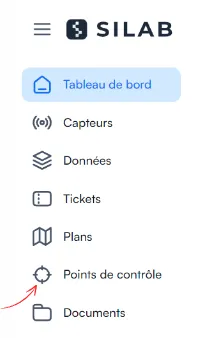
In the left-hand menu, select Checkpoints.
-
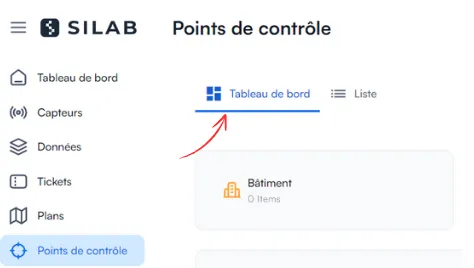
Click Dashboard in the submenu.
-
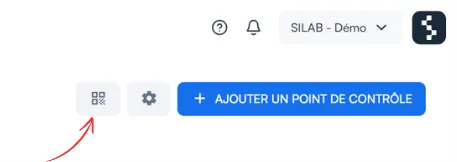
At the top right, click the Print QR Codes icon.
-
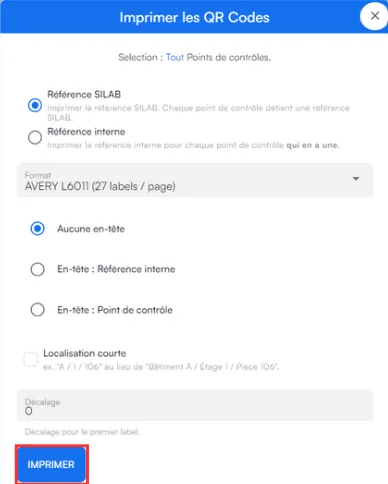
Check the information, then click Print. If your facility uses its own coding, choose Internal reference.
Print a selection of QR codes
Section titled “Print a selection of QR codes”-
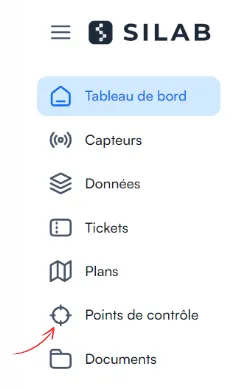
In the left-hand menu, select Checkpoints.
-
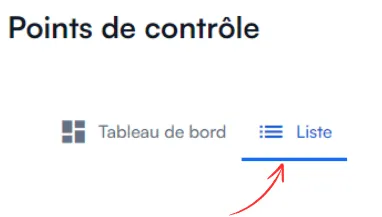
Click List in the submenu.
-
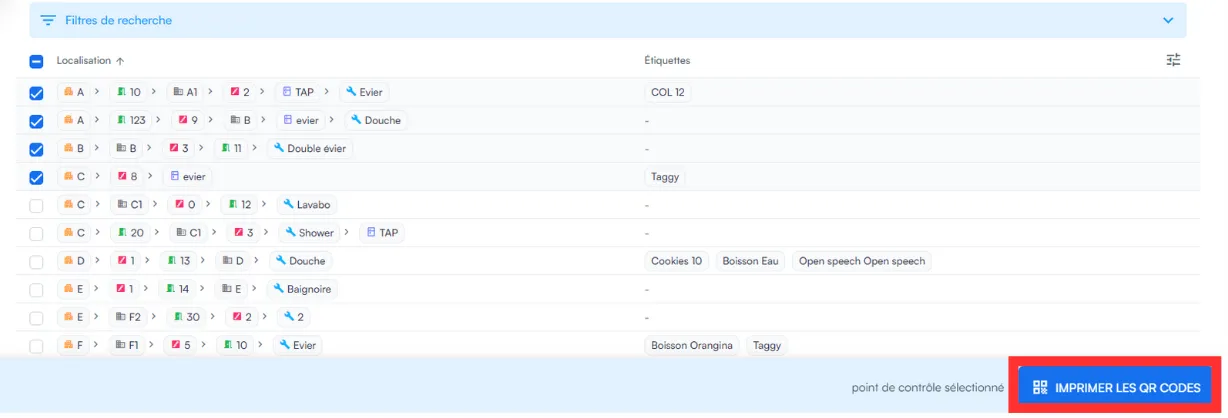
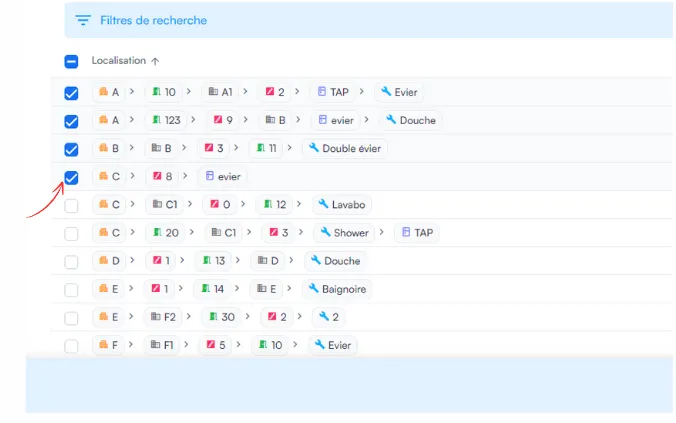
Tick the checkpoints you want.
-
At the bottom right, click Print QR Codes.